Configuration
⚡ 3 min readConfigure authentication settings including RP ID, access token expiration, and legal URLs
What the Configuration Panel Does
The Configuration panel manages core authentication settings with several key components:
- Domain authentication (RP ID) - Required for WebAuthn passkey functionality
- Token lifetime - Access token expiration periods (1 hour to 1 year)
- Legal compliance - Terms of Service and Privacy Policy URLs for authentication modals
Panel description:
Located in the top-right section, the panel shows: “Manage your project with general settings, appearance customization, notification controls, privacy settings, and advanced options.”
Critical: Incorrect RP ID configuration will prevent WebAuthn from working. This setting must match your application’s domain exactly
Prerequisites
- Your application’s domain name (e.g.,
example.comorlocalhostfor development) - (Optional) URLs for Terms of Service and Privacy Policy documents
Opening the Configuration Panel
Log in to Transcodes Console
Go to the Transcodes desktop app and sign in with your account
Open your project
From the dashboard, select the project you want to configure. You’ll see the project overview page
Find the Authentication Kit Cluster
On the project page, look for the Authentication Kit Cluster section. This is typically located in the main content area of the dashboard
The cluster contains several cards/tiles including:
- Installation Guide
- Configuration (⚙️ gear icon)
- Branding
- Audit Logs
- Backup
- JSON Web Key
Click the Configuration gear icon
In the Authentication Kit Cluster, locate the card with a gear icon (⚙️) and the label “Configuration”. Click on this card to open the Configuration panel
Tip: The Configuration panel will slide in from the right side of the screen. If you don’t see it, make sure your browser window is wide enough to display the side panel
Verify the panel is open
The Configuration panel should now be visible on the right side with a purple “Auth Configuration” accordion section expanded by default
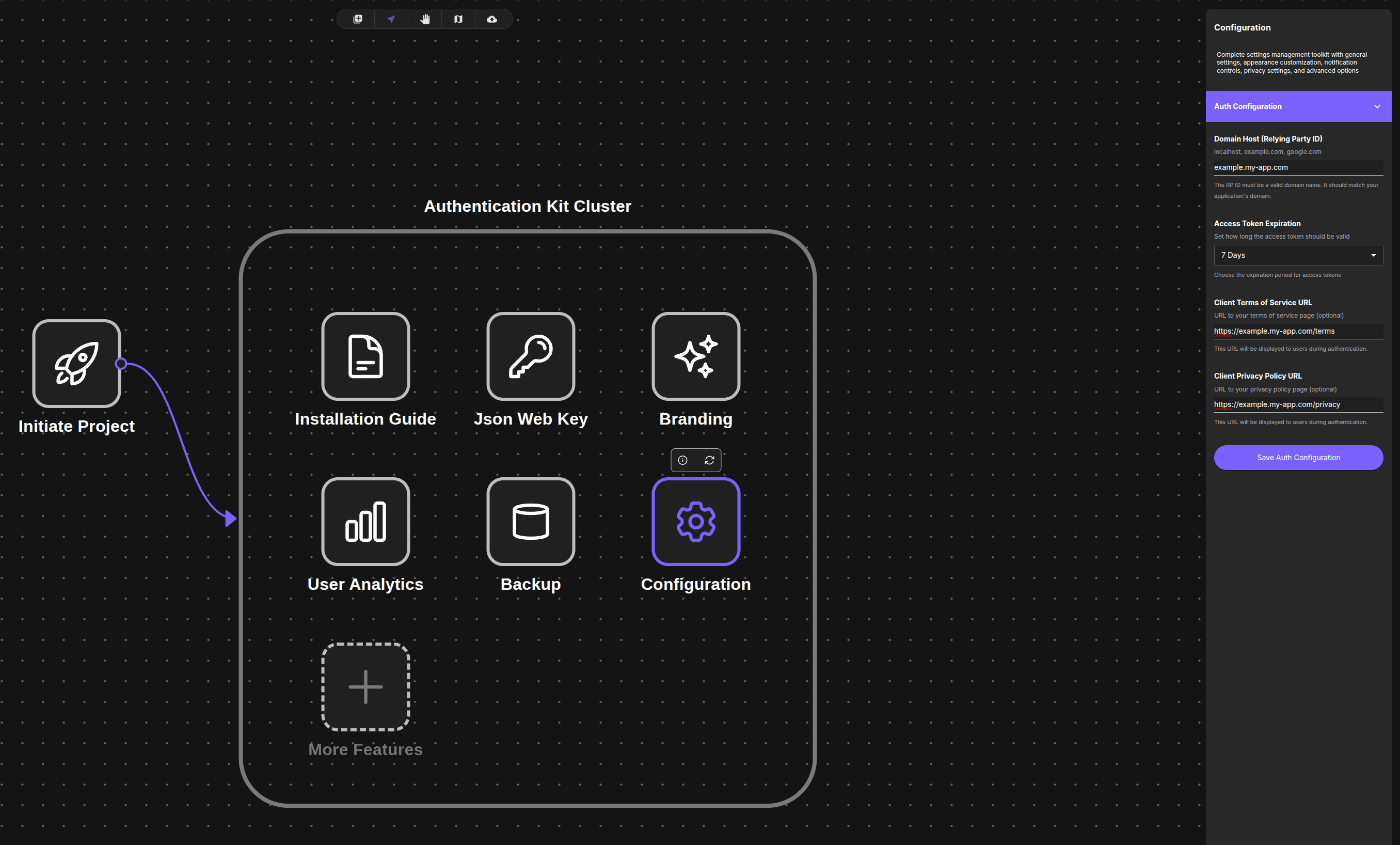
The Configuration panel appears on the right with a purple “Auth Configuration” accordion section
Configuring Settings
The Configuration panel contains an accordion section titled “Auth Configuration” with four fields
Example configuration shown in the panel:
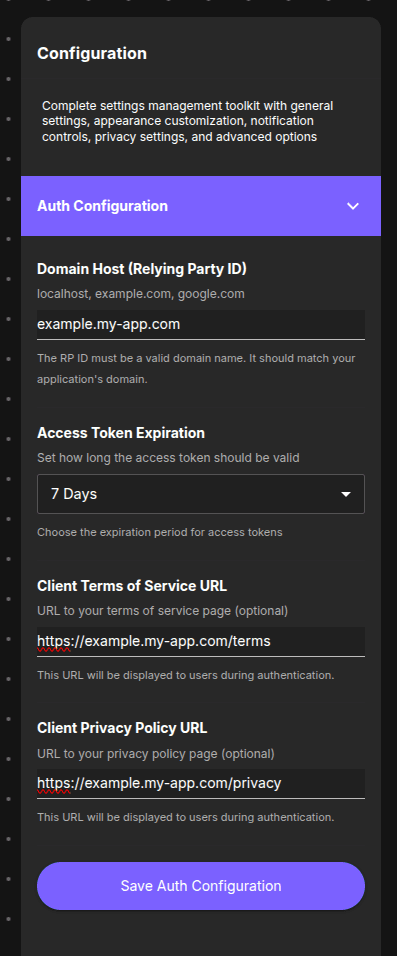
The panel shows:
- Domain Host:
example.my-app.com - Access Token Expiration:
7 Days(dropdown) - Terms of Service URL:
http://example.my-app.com/terms - Privacy Policy URL:
https://example.my-app.com/privacy
Each field includes helper text explaining its purpose
1. Set Domain Host (RP ID)
The RP ID (Relying Party ID) determines the domain under which WebAuthn credentials are scoped
To set RP ID:
- Locate the Domain Host (Relying Party ID) field
- Enter your domain name (no protocol, no port)
| Environment | RP ID Example |
|---|---|
| Local development | localhost |
| Production (root) | example.com |
| Production (subdomain) | app.example.com |
Rules:
- Domain name only (no
https://, no port:3000, no path) - Examples:
localhost,example.com,app.example.com
Critical: RP ID must match your application’s domain exactly. Incorrect configuration will prevent WebAuthn from working
2. Choose Access Token Expiration
Control how long access tokens remain valid before requiring refresh
To set token expiration:
- Locate the Access Token Expiration dropdown
- Select one of the available options
Available options:
| Duration | Recommended for |
|---|---|
| 1 Hour | High-security apps (banking, financial) |
| 7 Days | Standard web apps (default) |
| 60 Days | Mobile apps, consumer apps |
| 90 Days | Intranet, long sessions |
| 1 Year | IoT, background services |
3. Add Terms of Service URL (Optional)
To add ToS URL:
- Locate the Client Terms of Service URL field
- Enter your full URL (must include
https://) - Example:
https://example.com/terms - Leave blank if not available
Where this appears:
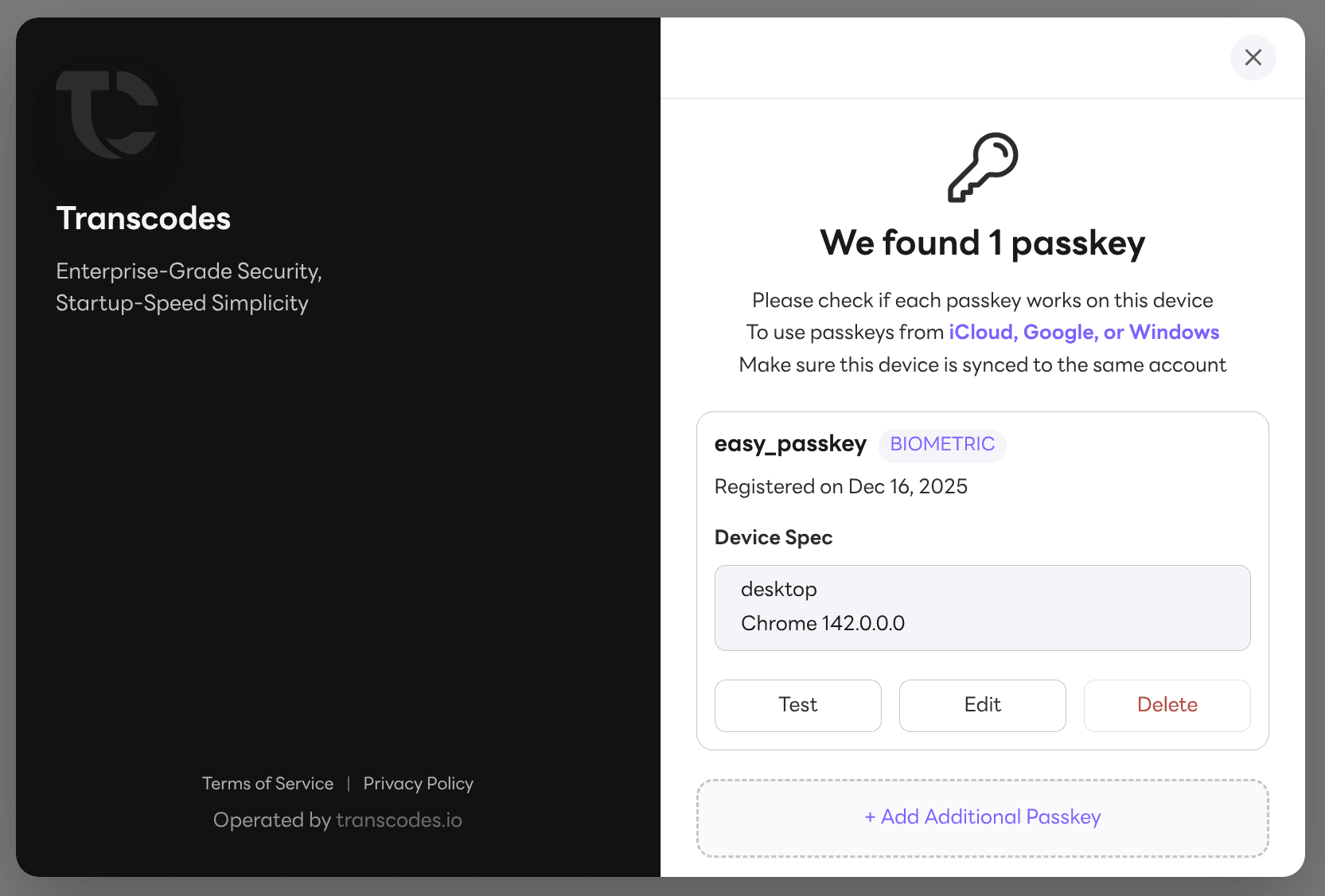
The link appears in the bottom-left corner of the authentication modal
4. Add Privacy Policy URL (Optional)
To add Privacy Policy URL:
- Locate the Client Privacy Policy URL field
- Enter your full URL (must include
https://) - Example:
https://example.com/privacy - Leave blank if not available
The link appears in the authentication modal alongside the Terms of Service link
5. Save Configuration
To save:
- Click the purple Save Auth Configuration button at the bottom
- Wait for confirmation message
- Changes take effect immediately
Unsaved Changes: Always save before leaving the panel. Changes are lost if you navigate away without saving
What to do next?
After configuring your project:
- Get your webworker.js script
- Customize authentication UI
- Follow Quick Integration for your framework