Screenshots
⚡ 3 min readUpload up to six banner images per form factor (desktop and mobile) to power a richer install prompt — the “Rich Install Prompt” experience on supporting browsers. These images appear in the browser’s install dialog alongside the app name and icon. Supported on most Chromium-based browsers (Chrome, Edge), not on iOS Safari
Desktop Screenshots
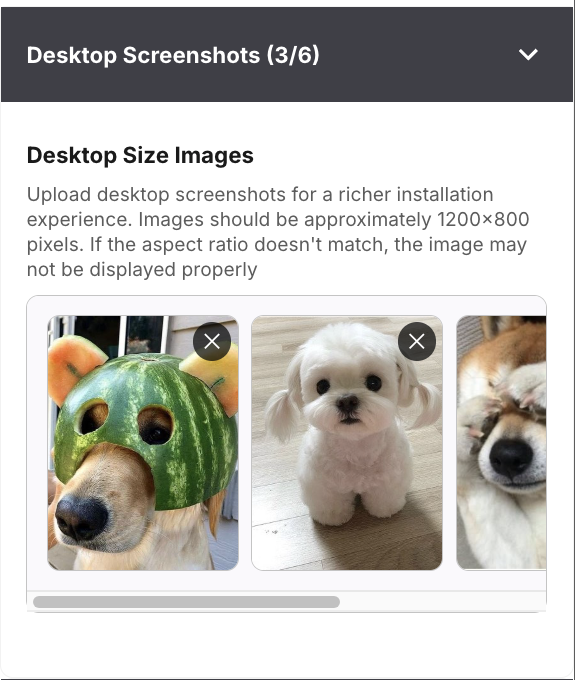
Desktop Size Images
Upload desktop screenshots for a richer installation experience. Recommended size: approximately 1200×800 pixels. Maximum 6
If the aspect ratio doesn’t match, the image may not be displayed properly
Click + Add Desktop Screenshot to upload images. Each uploaded slot shows an × button on hover for removal; the header counter (e.g. Desktop Screenshots (3/6)) tracks usage against the 6-image cap
Mobile Screenshots
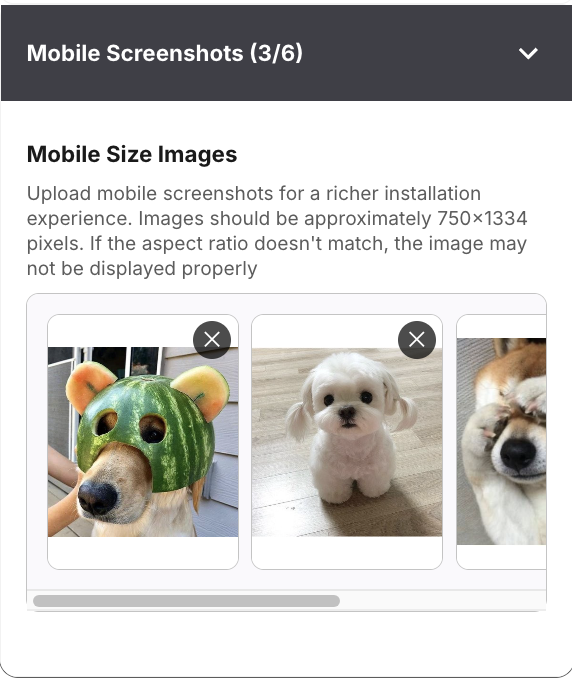
Mobile Size Images
Upload mobile screenshots for a richer installation experience. Recommended size: approximately 750×1334 pixels. Maximum 6
If the aspect ratio doesn’t match, the image may not be displayed properly
Click + Add Mobile Screenshot to upload images. Just like the desktop panel, the title counter (e.g. Mobile Screenshots (3/6)) caps at six
What Users See When Installing
Once screenshots are saved, a supporting browser shows a Rich Install Prompt when the user triggers app installation. The dialog surfaces app name, origin, description (from Configuration), and a horizontally scrollable carousel built from your uploads — with Install / Cancel actions
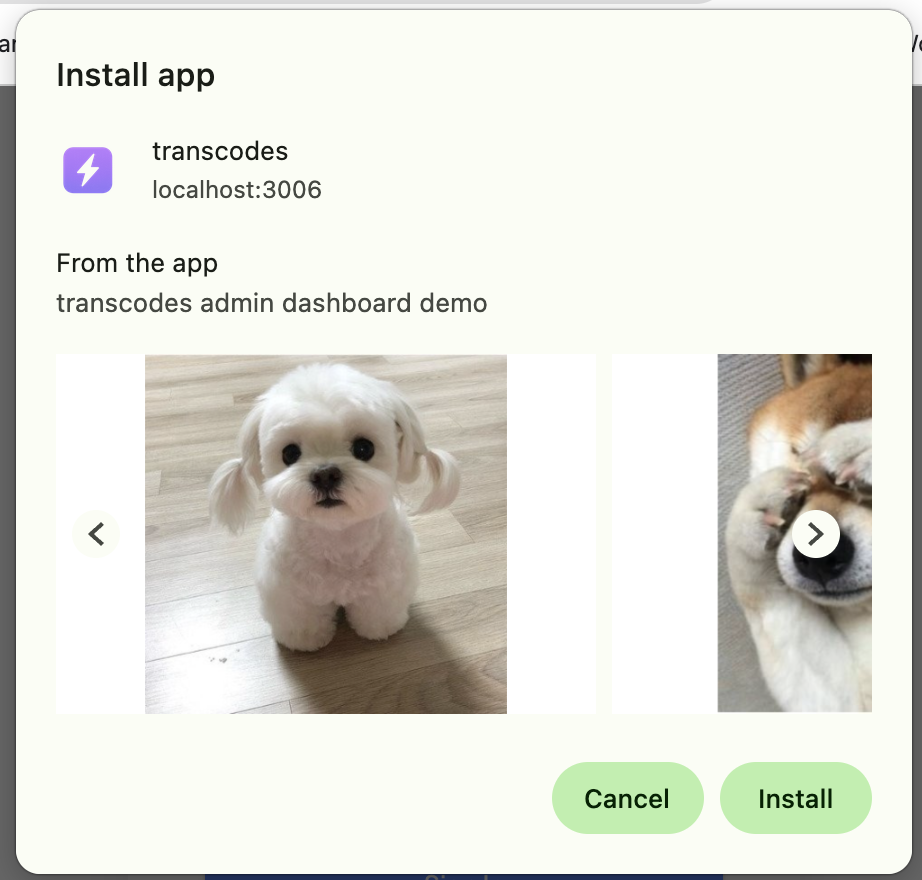
The order of uploaded screenshots is the order shown in the carousel. Put the most convincing frames first — onboarding / key workflows / social proof — because many users only see the first one or two frames before deciding
iOS not supported. The rich install prompt (with screenshot carousel) is displayed on most platforms (Chrome, Edge, etc.) but not on iOS Safari. Users on iOS still see the default Add to Home Screen flow without screenshot previews
Next Steps
- App Icons — App icon setup
- Configuration — App name, description, display mode
- Widget — Install button configuration